How I Fixed a GRUB Error on My Dual Boot Laptop
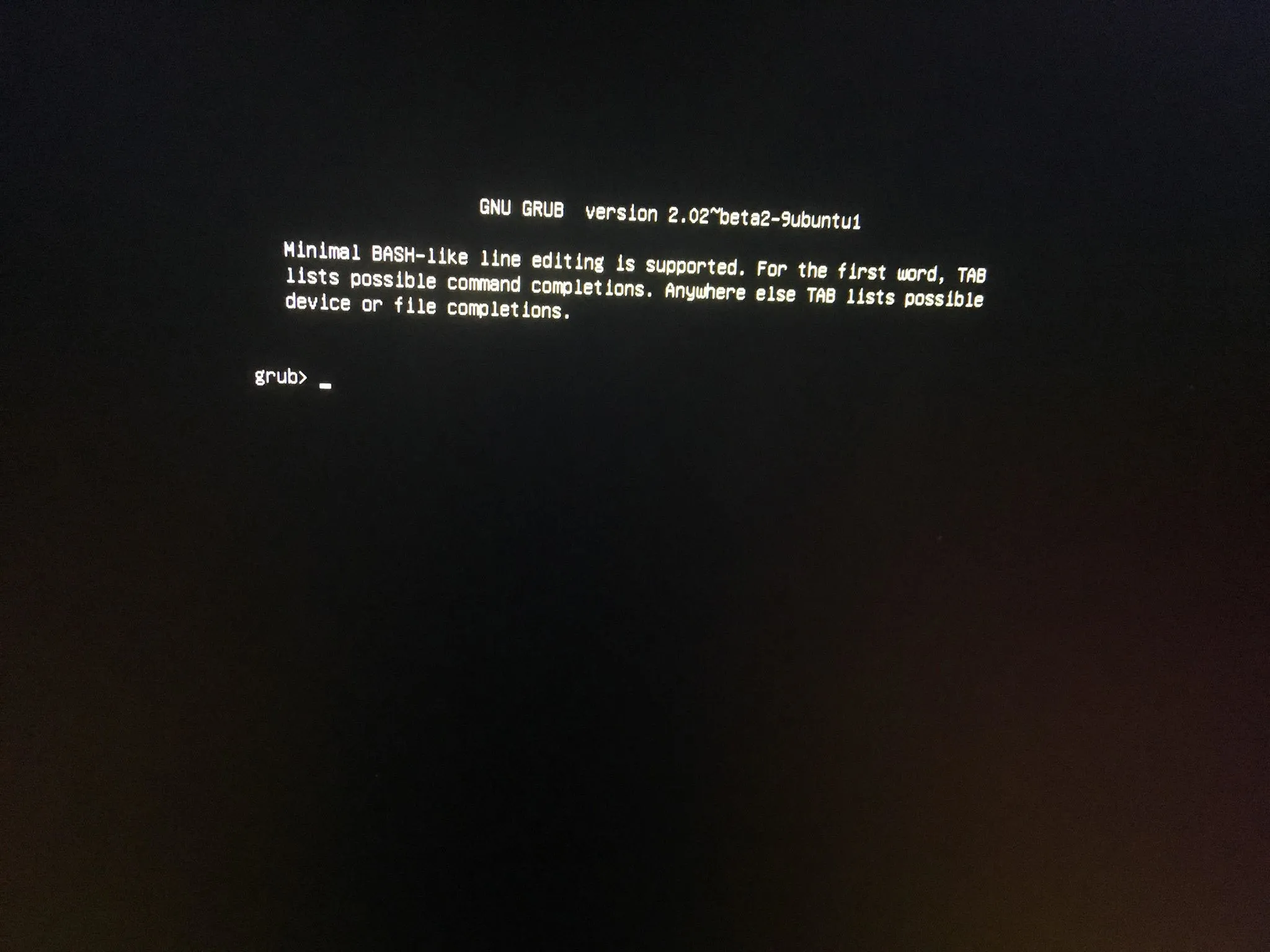
Recently, my old laptop with dual boot Windows and Ubuntu suddenly refused to start normally. Instead of showing the usual boot menu, it dropped me straight into a GRUB terminal prompt.
If you are seeing only a grub> prompt when you power on your machine, this post walks through how to:
- Find your Windows or Ubuntu partition from the GRUB terminal
- Manually boot into Windows using GRUB
- Make Windows the default bootloader again using
bcdedit
This approach is especially useful if you have a dual boot setup and the GRUB bootloader is broken or misconfigured.
This laptop has two operating systems installed:
- Windows on the first drive/partition (think of it as drive C:)
- Ubuntu on the second drive/partition (think of it as drive D:)
No matter how the boot order was changed in BIOS/UEFI, the machine would always show only the GRUB terminal:
grub>If the boot order was switched to the drive containing Windows, the Windows boot menu would appear. But on normal startup, it always landed on the GRUB prompt. That meant GRUB itself was broken or pointing to the wrong target.
Understanding the GRUB Error
If you only see the grub> prompt (and not the usual GRUB menu), it typically means:
- The GRUB configuration is corrupted or missing
- GRUB cannot find its configuration file
- The bootloader is installed, but it does not know where your OS is
The good news is: from this GRUB terminal, you can still:
- Inspect available drives and partitions
- Locate the EFI files for Windows or Ubuntu
- Manually boot into Windows
- Then repair or change the default bootloader from inside Windows
Step 1: List Drives and Partitions in GRUB
From the GRUB prompt, first list all available drives and partitions:
lsGRUB will show something like:
(hd0,gpt1) (hd0,gpt2)You may see more entries depending on how many drives and partitions you have. Each of these represents a partition that might contain an EFI bootloader.
Step 2: Find the EFI Partition (Windows or Ubuntu)
Next, inspect each partition to find where your EFI boot files live. For example:
ls (hd0,gpt1)/Check each partition until you find a structure like:
EFI/Microsoft/Boot(for Windows)EFI/ubuntu(for Ubuntu)
Once you see either of those paths, you have found the EFI system partition for that OS.
For example, if EFI/Microsoft/Boot exists on (hd0,gpt1), then:
(hd0,gpt1)is your Windows EFI partition.
Step 3: Set the Root to the Windows EFI Partition
Now tell GRUB to use that partition as the root:
set root=(hd0,gpt1)Replace (hd0,gpt1) with the correct partition you discovered in the previous step.
Step 4: Chainload the Windows Bootloader
Next, chainload the Windows boot manager from GRUB:
chainloader /EFI/Microsoft/Boot/bootmgfw.efiIf there is no error, proceed to boot:
bootIf everything is correct, your laptop should now boot into Windows instead of staying stuck at the GRUB error prompt.
Step 5: Make Windows the Default Bootloader with bcdedit
Once inside Windows, you can make Windows Boot Manager the permanent default bootloader. Open a Command Prompt as Administrator and run:
bcdedit /set {bootmgr} path \EFI\Microsoft\Boot\bootmgfw.efiThis command tells the system to use the Windows boot manager from now on, instead of GRUB. On the next restart, the machine should:
- Go directly to the Windows boot menu, or
- Boot straight into Windows, depending on your configuration
From there, you can decide whether to repair or reinstall GRUB if you still want a dual boot menu, or simply keep Windows boot manager as the default.
Final Thoughts
A broken GRUB bootloader can look scary, especially when your laptop only shows a grub> prompt. However, as long as the EFI files are still there, you can:
- Use the GRUB terminal to locate your EFI partition
- Manually boot into Windows via chainloading
- Restore Windows Boot Manager as the default with
bcdedit
This simple method brought my old dual boot laptop back to life and might do the same for yours.